
Two HDMI sockets do not automatically give your laptop two independent screens. Before buying a dock, work backward from the computer, displays and software you use. A tidy desk begins with a supported connection diagram; the box containing the most ports can still be the wrong purchase.
A compact USB-C hub often suits a laptop that needs one monitor, a card reader and occasional accessories. A powered dock can make a permanent desk easier to reconnect each morning. For two displays, the deciding issue is the video technology supported by the complete setup. This is a specification-based buying guide, not a claim that we have tested every laptop and dock combination.
USB-C describes the connector
The small oval port can carry different combinations of data, charging and video. A port that charges a phone may lack the display capability your hub requires. The computer, connecting cable and dock all have to support the relevant functions.
Microsoft's troubleshooting guide distinguishes USB4, Thunderbolt and display-related limitations, and recommends the supplied or appropriately certified cable. Plugging a capable dock into a less capable port does not add the missing hardware. Microsoft USB-C guidance.
Write down your laptop's exact model and chip, then find its official display specifications. Record the monitor resolution, refresh rate and available inputs as well. “Two 4K monitors” leaves out whether you expect 30Hz, 60Hz or a higher refresh rate, and whether both screens must be independently extended.
Three routes to multiple screens
Swipe or scroll the table sideways to compare every column.
| Connection approach | What to check | Important limitation |
|---|---|---|
| USB-C DisplayPort Alt Mode | Host video support and the hub's resolution table | Some products share one video stream through MST |
| Thunderbolt dock | Supported host, cable and display combination | The computer still sets native display limits |
| DisplayLink dock or adapter | Explicit DisplayLink support and compatible software | Requires software, permissions and workflow checks |
DisplayPort Multi-Stream Transport, or MST, is commonly used to split a video connection into multiple outputs. macOS does not generally turn an MST hub's two outputs into two separate extended desktops. CalDigit documents this distinction for Mac users. Read the dock's Mac-specific support table rather than relying on a Windows-oriented “dual display” headline. CalDigit's MST explanation.
Match the dock to the Mac
Apple's display guidance sends readers to model-specific specifications because display counts vary by computer. Chip families, laptop generation and supported lid configurations matter. Avoid blanket rules covering every Apple-silicon Mac. Apple's external-display guide.
A Thunderbolt dock can provide a convenient route for supported native displays, but it cannot manufacture an extra native display engine. For example, CalDigit's TS4 compatibility table lists one external display through the dock for base M1/M2 Macs and two for listed Pro/Max and other supported configurations. Its Windows Thunderbolt support also has host-specific exceptions. Verify your exact machine with the computer maker before ordering. CalDigit TS4 compatibility.
That distinction helps prevent an expensive disappointment: a premium dock may be excellent at connecting storage, Ethernet and audio while still showing only one independent external display on your computer.
When a compact hub is sufficient
The Anker 341 USB-C Hub, model A8346, is a compact single-monitor example. It has one HDMI output, USB data connections, SD and microSD readers and charging pass-through. It does not include Ethernet. The host must support video over its USB-C connection; a USB-C socket alone does not establish that capability. Anker 341 specifications.
For someone using the laptop display plus one external monitor, that can be enough. For two external monitors, map the second display to a separately supported connection or choose another appropriate setup. The seven-in-one label describes connections, not a count of displays.
Anker specifies HDMI output up to 4K at 30Hz for this model. That is a material limitation if your desk calls for 4K at 60Hz. Its charging input rating is also different from the power available to the laptop after the hub's own requirements. Check the exact model, supplied cable and host requirements before buying. Anker 341 user manual.
What a permanent dock buys you
A powered desktop dock is about the routine. Your monitor connections, Ethernet, speakers and storage remain at the desk; one host cable reconnects the laptop. That is useful when the alternative involves several adapters each morning.
The CalDigit TS4 is a Thunderbolt 4 example with a separate power supply and up to 98W host charging. Its display claims have specific host and monitor conditions. Higher-resolution combinations can require supported Display Stream Compression, so ordinary dual-4K support should not be extrapolated to every high-refresh gaming panel. TS4 display and power specifications.
Put the dock where its frequently used ports are accessible. Include the power brick and monitor adapters when judging the footprint and cost. A vertically oriented product photo alone can hide how much equipment must fit behind the desk.
Treat DisplayLink as a separate choice
DisplayLink transports display information using its software and compatible hardware. On macOS, its support documentation requires Screen Recording permission so the software can access the pixels needed to produce the external display. Synaptics says DisplayLink Manager does not send those pixels back to the company. DisplayLink permission explanation.
Before choosing that route, confirm employer permission to install the software and test the applications you rely on. Check protected-content behavior, video work, sleep and wake, and any high-refresh requirement. A setup suitable for documents and dashboards may need different evaluation from one used for production video or games.
Buy from a diagram
Draw the laptop in the center and label every cable with its job. Include the charger, each monitor, storage and network connection. Then compare that diagram against the manufacturer's supported configuration.
For one external display and portability, start with a compact hub. For a permanent supported Thunderbolt desk, compare powered docks. For an additional screen beyond the native arrangement, investigate DisplayLink deliberately. Buy the connection your computer can actually use, then enjoy the cleaner desk.
Explore the options
Exact product examples for the choices discussed in this guide. Confirm the selected variant, current seller and return terms before ordering.
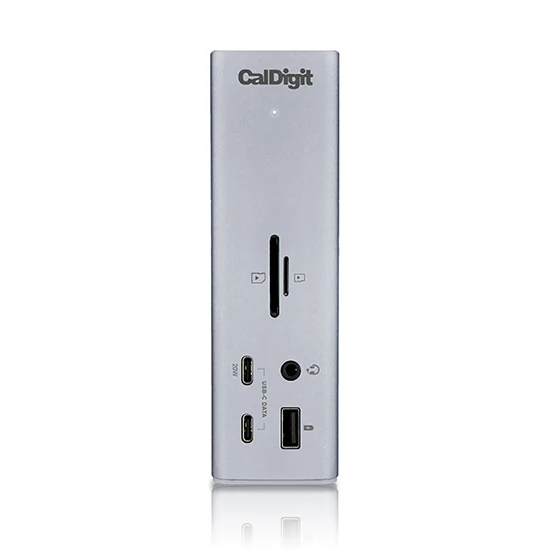
CalDigit TS4 Thunderbolt 4 Dock
A powered permanent-desk example for a supported Thunderbolt computer.
As an Amazon Associate I earn from qualifying purchases. We may earn a commission from qualifying purchases through this button.
View exact product on Amazon ↗ (paid link)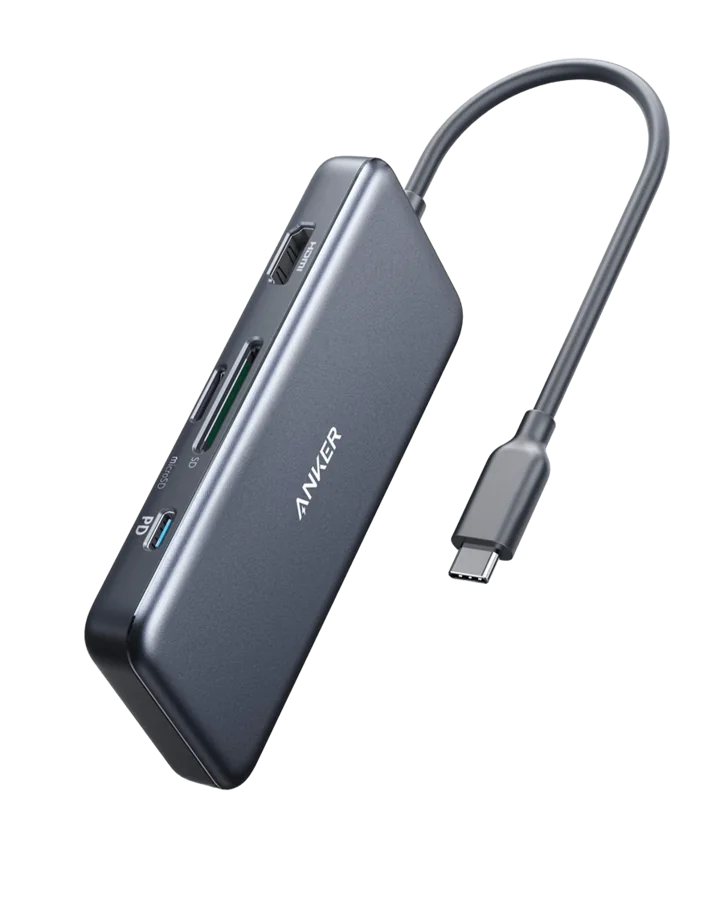
Anker 341 USB-C Hub — A8346
A portable single-monitor alternative when a complete powered dock is unnecessary.
As an Amazon Associate I earn from qualifying purchases. We may earn a commission from qualifying purchases through this button.
View exact product on Amazon ↗ (paid link)