
A charging cable can be the wrong display cable
Two USB-C cables can fit the same sockets and do very different jobs. One may be a perfectly sensible laptop-charging cable yet disappoint when you attach an SSD or a monitor. Start with the task rather than the largest number on the box: power, file transfer and display output are separate requirements.
The clearest example in our existing product edit is Belkin’s CAB015. Belkin describes support for up to 240W charging alongside USB 2.0 data at up to 480 Mbps. That makes it a charging-first example, not evidence that a 240W label guarantees fast external storage or monitor support. Those are the manufacturer’s published capabilities, not our measurements. Belkin’s CAB015 specifications.
Read power and data as two separate specifications
For charging, compare the cable’s stated power capability with the charger and device. A higher cable rating does not make a lower-output charger deliver more, and the laptop determines what it can accept. Keep the cable’s length and connector clearance in mind: an otherwise suitable lead is awkward if it cannot reach the outlet without pulling against a port.
For data, look for an explicit transfer-rate claim rather than assuming that USB-C describes a speed. USB-IF’s certification rules distinguish power markings from data-performance markings; its product database provides a way to look up certified products. Certification should be checked against the actual model, not inferred from a generic badge in a marketplace image. USB-IF cable-marking requirements, certified-product search.
Swipe or scroll the table sideways to compare every column.
| Your job | What to establish before buying | What the headline alone cannot tell you |
|---|---|---|
| Charge a laptop | Required power, charger output, cable rating and useful length | Whether the laptop accepts the charger’s maximum output |
| Move large files | Host, drive and cable data capabilities | Whether a high-wattage cable is fast for storage |
| Connect a display | Host video output, supported display connection and cable capability | Whether the USB-C connector carries a picture |
Make a short cable inventory
Before ordering another multipack, lay out the cables already used with your monitor, drive and charger. Identify each by its original packaging or manufacturer reference. Keep a cable of uncertain capability as an unverified spare rather than silently promoting it to your main monitor connection.
Our practical suggestion is to label the job at both ends: laptop charging, external drive, or display. That is an organizational method, not a certification system. It makes substitutions less random when a desk stops working after a trip. Keep a note of the exact replacement reference with the device it serves.
Diagnose one component at a time
If an SSD is unexpectedly slow, use its supplied cable and connect it directly to a compatible computer port before comparing results through a hub. If a monitor has no picture, check the laptop’s video-output specification and the display’s connection instructions before replacing the screen. A cable swap is informative only when the replacement has known capabilities.
The spending rule is simple: buy the capability your connection needs. Paying for a high charging rating will not solve every data or display problem. Conversely, a premium high-speed cable may add little to a charging-only bag. Keep the two decisions separate and you can often buy fewer cables, with a clearer reason for each one.
The cable example in this guide
The photographed Belkin CAB015 is included to show why a charging specification deserves its own category. Consider it for compatible charging requirements, not as our recommendation for every SSD or display. Match the selected length and model, then verify the current listing. No comparative durability, thermal or transfer-speed test has been performed for this guide.
Explore the options
One existing charging-cable example, included to explain the tradeoff rather than imply that it does every job.
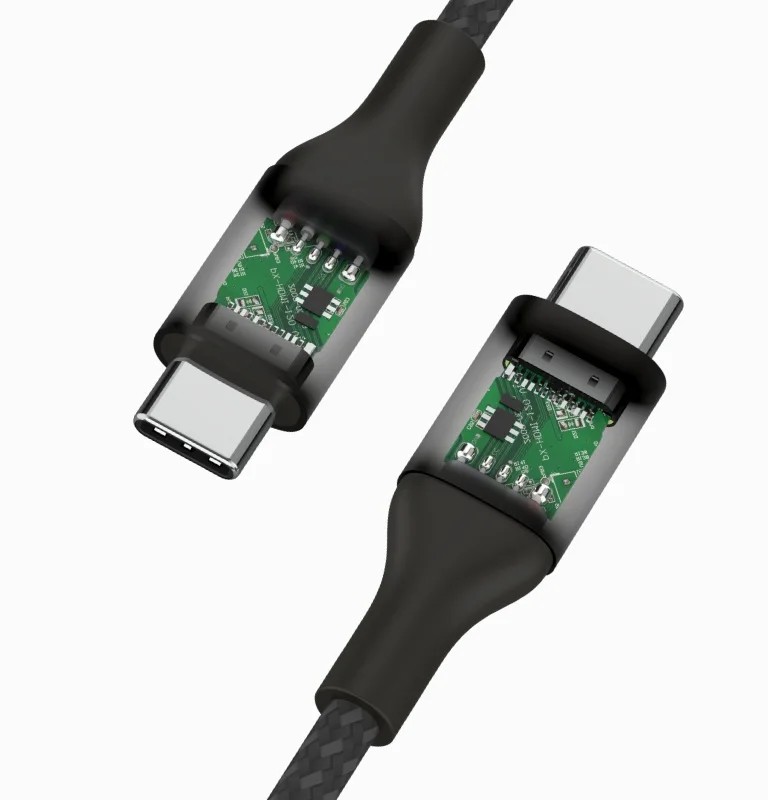
Belkin BoostCharge 240W USB-C cable — 6.6ft
A charging-first example; published USB 2.0 data capability. Not our SSD or monitor cable recommendation.
As an Amazon Associate I earn from qualifying purchases. We may earn a commission from qualifying purchases through this button.
Check price & availability on Amazon ↗ (paid link)