
Moving a file does not create a second copy
An external SSD can make a crowded laptop easier to use, but extra storage and backup solve different problems. If you move your only photograph library onto a portable drive and remove the original, the drive is now primary storage. Its speed, rugged casing or premium label does not create a recovery copy.
Start by asking what should survive the loss of any one device. A useful backup arrangement lets you recover an earlier file as well as the current one. It also has a routine you can explain and a restore you have actually tried. Buying the drive is only the hardware part of that arrangement.
Choose the recovery job first
Write down the files that matter, where the working originals live and how quickly they change. Then separate three needs: a working drive, a local backup and a copy kept somewhere else. CISA’s 3-2-1 guidance describes three copies, two media types and one offsite copy. Use that as a planning framework, not a claim that any particular pair of drives eliminates all risk. CISA’s backup-options guide.
Swipe or scroll the table sideways to compare every column.
| If your goal is… | What the drive needs to do | What remains to arrange |
|---|---|---|
| More room for projects | Hold working files through a suitable connection | A separate backup of those files |
| Recover changed documents | Receive versioned backups on a repeatable schedule | A successful restore test |
| Recover after theft or damage at home | Form part of a wider recovery plan | A suitably protected offsite copy |
Match the method to the operating system
On a Mac, Time Machine can use a compatible connected external drive. Apple recommends a backup device with at least twice the Mac’s storage capacity and explains the dedicated-backup setup. The exact capacity choice still depends on what you protect and how much history you want to retain. Read the current setup guidance before assigning a drive that already contains files. Apple’s Time Machine setup.
Windows File History can use an external drive or network location for file backups. Establish which folders your selected method covers rather than assuming every file or application is included. A backup feature’s name is less useful than knowing what you could restore after a failure. Microsoft’s File History guidance.
Buy useful capacity before unused speed
Our portable SSD guide compares connection requirements because advertised transfer speed is not the same as the speed of your complete setup. A backup drive needs enough usable space and a dependable routine before it needs the most impressive headline number. Think about whether it will remain connected, travel with you or rotate to another location.
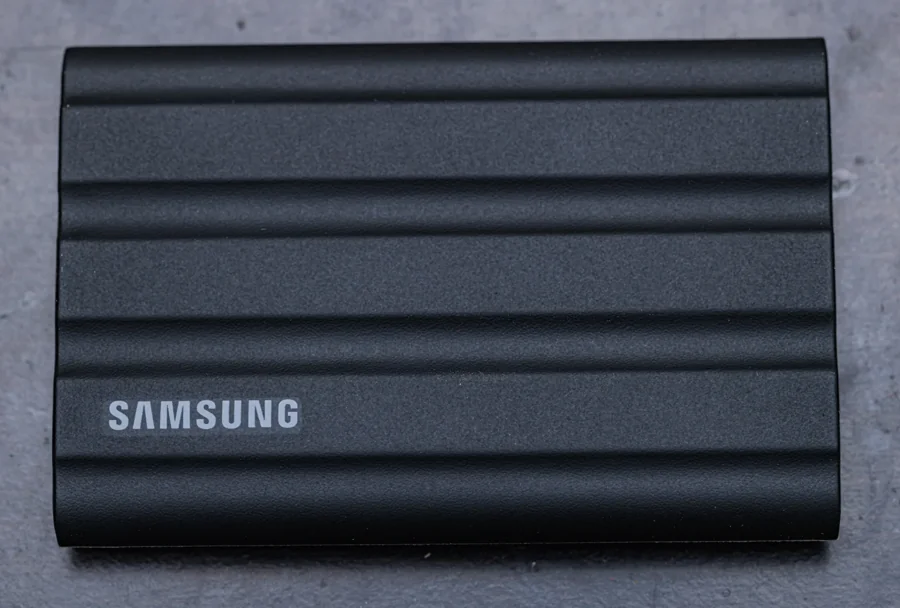
The Samsung T7 Shield 4TB below is an existing storage example from our edit, not an independently tested backup winner. Compare its current price and capacity with your actual plan. A smaller drive may be enough for one file set; a larger archive may need a different arrangement. Ruggedness claims do not replace additional copies.
Test recovery without risking the original
Create a harmless sample document, back it up through your chosen method and restore a copy into a separate test folder. Confirm that you can open it. Then check whether an earlier version is available after a deliberate change to that sample. Do not use an irreplaceable original as the first experiment.
Before any formatting or repartitioning, preserve and independently verify the files already on the destination drive. Formatting can erase them. Keep encryption recovery information accessible through an appropriate secure method, and review the backup after major changes to your computer. A modest drive with a verified routine is more useful than an expensive one whose recovery process remains a guess.
Explore the options
An existing capacity example, not a backup-performance winner. Choose a recovery plan and suitable capacity before comparing the current offer.
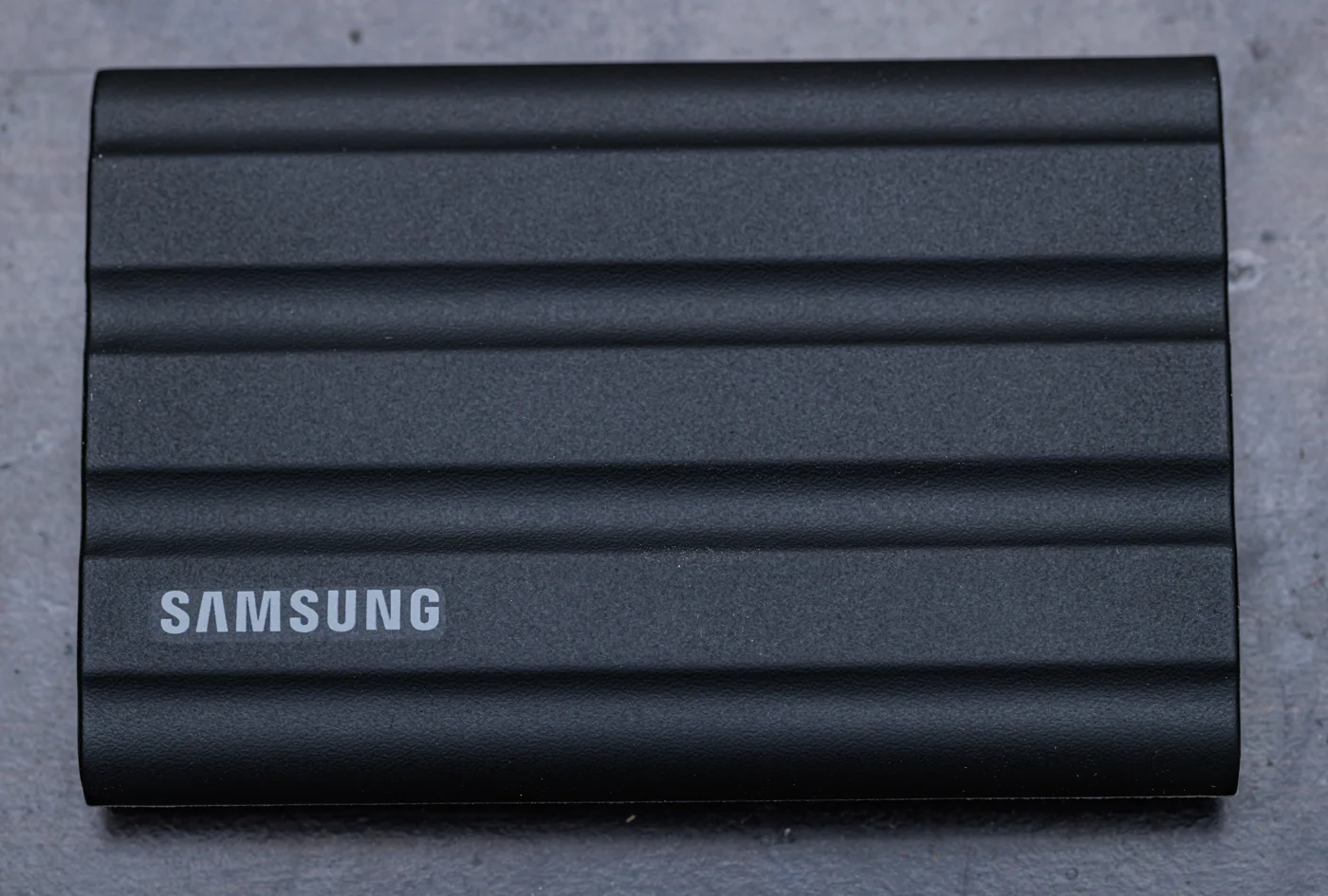

Samsung T7 Shield — 4TB
A USB 10Gbps family example for comparing the host, cable and workload before blaming the drive.
As an Amazon Associate I earn from qualifying purchases. We may earn a commission from qualifying purchases through this button.
Check price & availability on Amazon ↗ (paid link)