
A compact home office does not need to resemble a miniature control room. It needs enough clear space to write, a comfortable place for the screen, and connections that do not have to be reconstructed every morning. The most successful upgrade may be the object you remove before choosing anything new.
Begin by looking at the desk while you are actually working. Where does the mouse run out of room? Which cable crosses the notebook? Is the camera facing you, or the side of your face? A small workspace becomes easier to use when these problems are handled in the order they occur.
The five products in this researched guide are examples of different interventions, not a shopping list or a hands-on ranking. Choose one change, use it for a working week, and decide whether the remaining friction still needs hardware.
Measure the space that remains while you work
An empty desk measurement misses the important part. Put the laptop, screen, notebook, drink and anything else you normally use into position. Measure the clear surface that remains, including the depth between the screen and the front edge. Then follow the cables to their power supplies and connection points.
Mark three zones on a simple sketch: the objects used continuously, the things reached for occasionally, and the equipment that can live elsewhere. A spare drive does not have to sit beside your hand all day. A charger does not have to occupy the prime space in front of the monitor. Leave ventilation and reachable plugs wherever equipment moves.
Screen placement comes before accessory density. OSHA's workstation guidance places the screen directly ahead, with the top line at or below eye level and a comfortable viewing distance. Its general reference range is 20–40 inches. Increase text size when necessary rather than squeezing closer to a screen that is hard to read. Adapt the arrangement to your task and sight needs.
A smaller keyboard: Logitech MX Keys Mini
A compact keyboard is worth considering when a number pad occupies space you rarely use. Moving that edge inward can create more room for the mouse or a notebook. The benefit comes from the arrangement you can make around it; a smaller keyboard does not automatically make every desk comfortable.
The MX Keys Mini is a compact illuminated model. Make a paper outline of its published dimensions before ordering and try that footprint on your own desk. Keep a separate number pad only if the work justifies one, rather than immediately filling the recovered space with another accessory.
Check the operating-system layout, Bluetooth availability and company rules for optional customization software. It is also worth asking whether you prefer low-profile keys before changing the keyboard you use throughout the day. Choose the standard MX Keys Mini shown here rather than assuming the Mac-specific version has the same legends and package.
A compact pointer: Logitech MX Anywhere 3S
A small mouse can reduce the space needed to store the desk at the end of the day, but its working area still needs to be clear. A large mouse mat under a monitor base will not create room to move. Try relocating objects before assuming a new sensor or higher sensitivity will solve the layout.
The MX Anywhere 3S is a compact wireless option with a scrolling wheel intended for longer pages. Consider it when the same mouse must travel with a laptop. A larger hand may prefer a fuller body; physical fit deserves more attention than an impressive specifications panel.
A charger and a wireless mouse also create a maintenance routine. Decide where the cable will be kept and check whether the selected package includes everything your connection method requires. A clean desk should remain easy to use when the battery runs low.
A small connection point: Anker 341 USB-C Hub A8346
A hub makes sense when it replaces daily cable juggling. Write down the actual connections first: one external display, a card reader and an occasional USB accessory is a different requirement from two independent screens and wired networking. A small desk does not become simpler if the wrong hub leads to a second adapter beside it.
Anker's A8346 specification identifies one HDMI output up to 4K at 30Hz, card slots, USB connections and charging pass-through. It has no Ethernet socket. Its charging input is not another video output, and a separate suitable charger is required for pass-through power. Check the computer's USB-C video capability and your preferred display mode.
Keep this example for a modest connection requirement. If you need multiple monitors, compare your computer's supported displays with our dock-versus-hub guide before buying. A hub cannot create display support that the computer does not provide.
One charging point: Anker Prime 100W A2688
Power is a separate question from data. If the problem is several charging blocks, a more elaborate dock may be unnecessary. The Prime A2688 provides two USB-C ports and one USB-A port in a single charger. Plan the laptop, phone and accessory combinations you will actually charge together.
Anker publishes a 100W single-port maximum, but simultaneous use changes allocation. Check those combinations and the cable ratings against your devices. Do not assume that plugging everything in preserves the laptop's solo charging speed.
Keep the charger accessible and ventilated. Route slack away from the typing area without bending connectors sharply or creating a cable that catches when a chair moves. A short cable can reduce clutter; a cable that is too short simply makes the outlet dictate your desk layout.
Better camera placement: Logitech Brio 500
For calls, first move the light and camera you already have. A window behind you may make a new camera work harder; turning toward a softer light source can be a more useful first step. Position the screen you look at during conversation close to the camera so that you are not speaking sideways all day.
The Brio 500 is a USB-C Full HD webcam with a privacy cover. It is a candidate when a monitor needs a camera and the laptop is placed elsewhere. Check the mounting arrangement, cable path and employer approval before treating it as a necessary upgrade.
The ten-minute reset
At the end of the week, clear the desk and return only what you used. Check that the notebook opens without covering a keyboard, the mouse moves without meeting a mug, and the laptop can disconnect without pulling something off the surface.
Store occasional equipment nearby rather than buying permanent places for everything. The finished office should make the next working day easier to start. Clear space is a useful feature too; keep some of it.
Explore the options
Five researched examples for different small-desk problems. Choose the change your existing setup actually needs; this is not a requirement to buy all five.
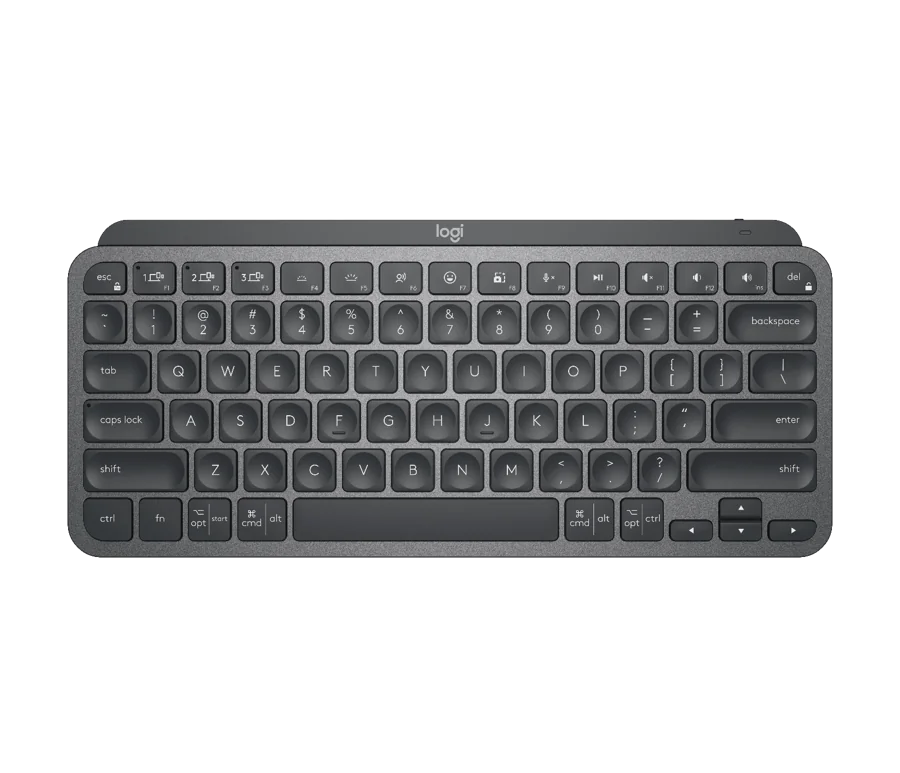
Logitech MX Keys Mini
A compact illuminated keyboard when removing an unused number pad would create useful working space.
As an Amazon Associate I earn from qualifying purchases. We may earn a commission from qualifying purchases through this button.
View exact product on Amazon ↗ (paid link)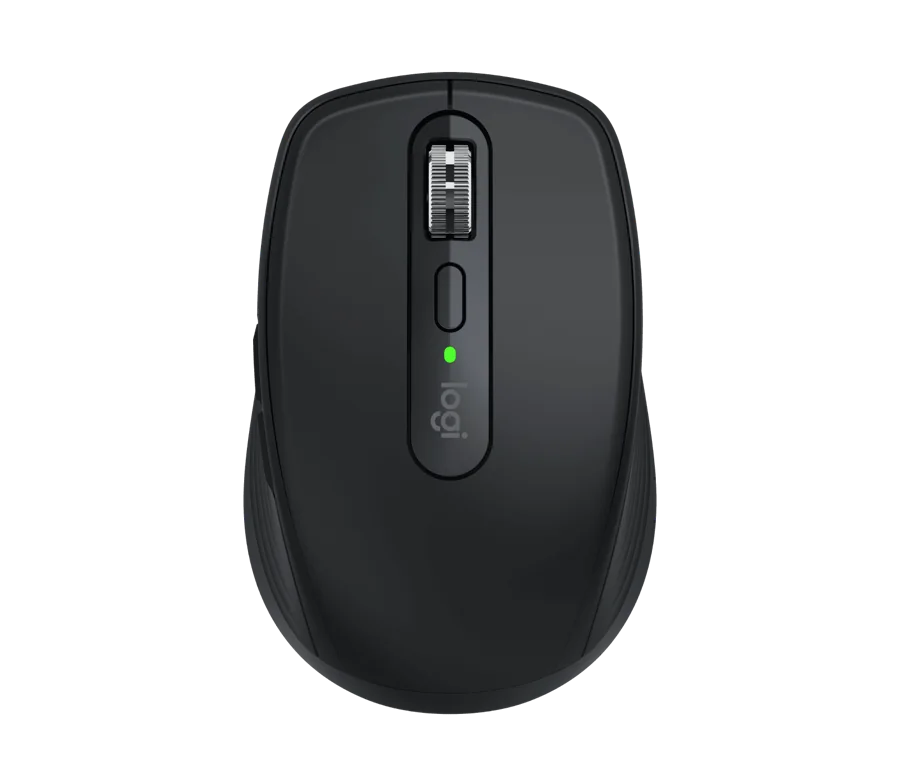
Logitech MX Anywhere 3S
A compact scrolling tool for someone who moves between working locations.
As an Amazon Associate I earn from qualifying purchases. We may earn a commission from qualifying purchases through this button.
View exact product on Amazon ↗ (paid link)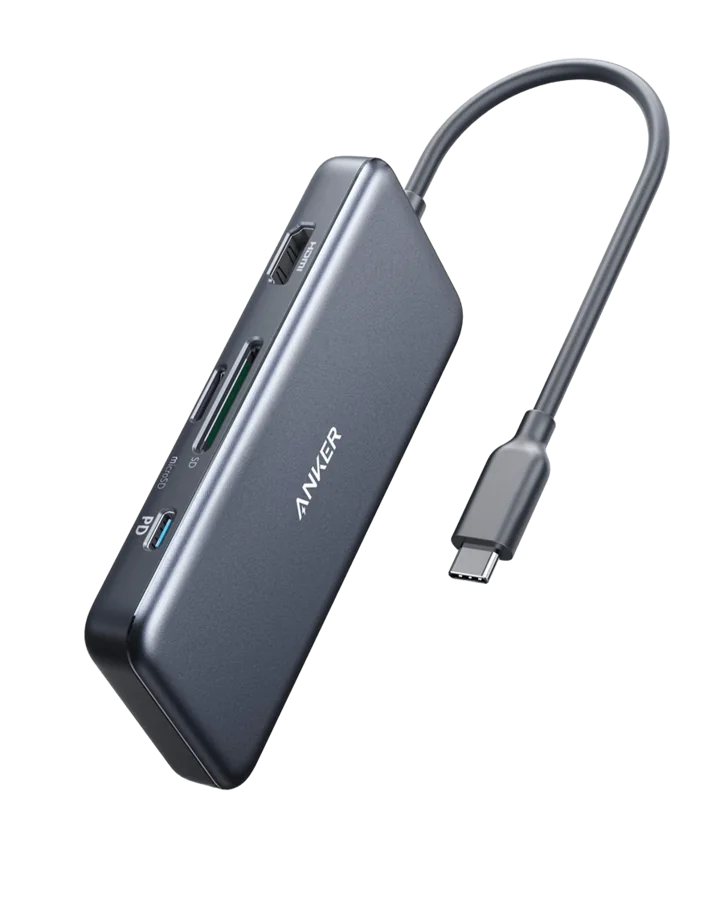
Anker 341 USB-C Hub - A8346
A small connection point for a compatible computer and one external display.
As an Amazon Associate I earn from qualifying purchases. We may earn a commission from qualifying purchases through this button.
View exact product on Amazon ↗ (paid link)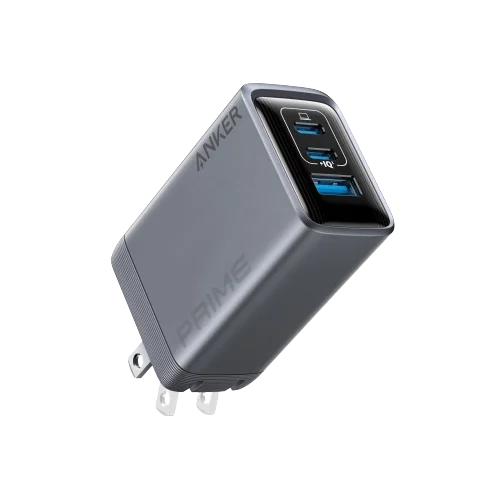
Anker Prime 100W three-port charger - A2688
One charging block for a known laptop, phone and accessory combination.
As an Amazon Associate I earn from qualifying purchases. We may earn a commission from qualifying purchases through this button.
View exact product on Amazon ↗ (paid link)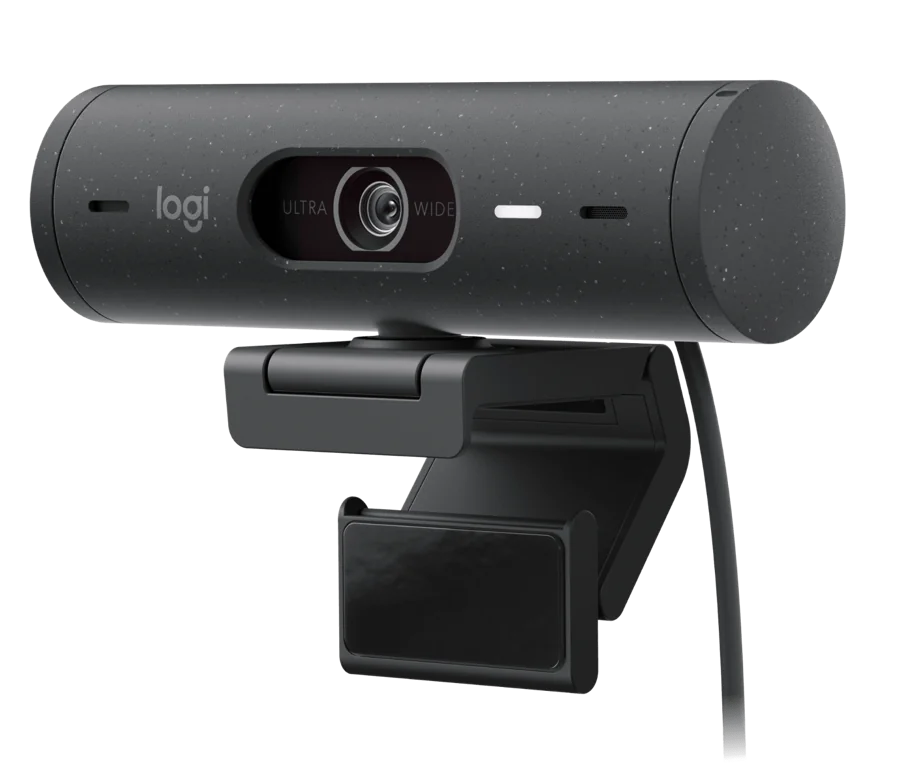
Logitech Brio 500
An external camera when a monitor-centered call setup needs better camera placement.
As an Amazon Associate I earn from qualifying purchases. We may earn a commission from qualifying purchases through this button.
View exact product on Amazon ↗ (paid link)