
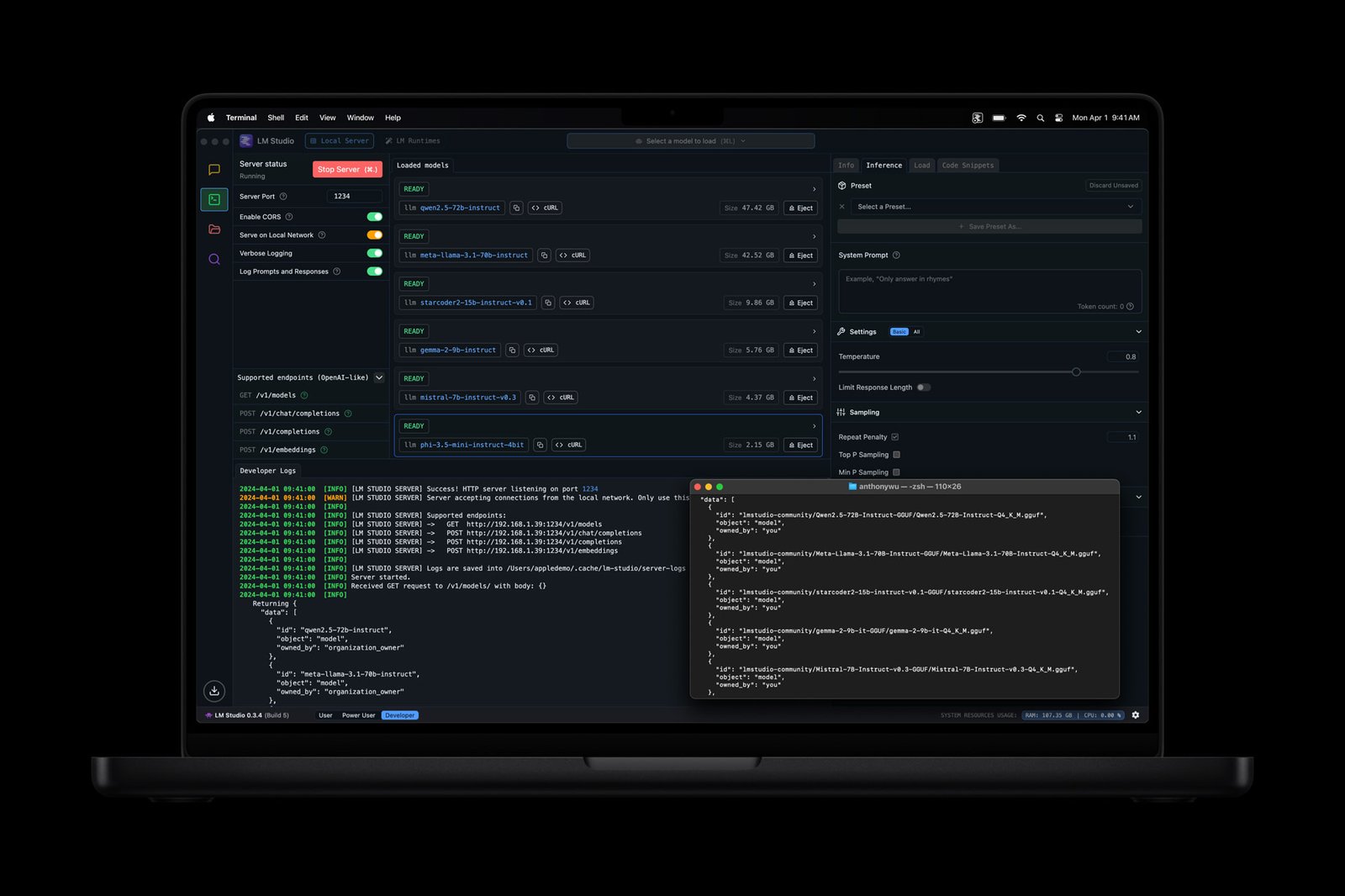
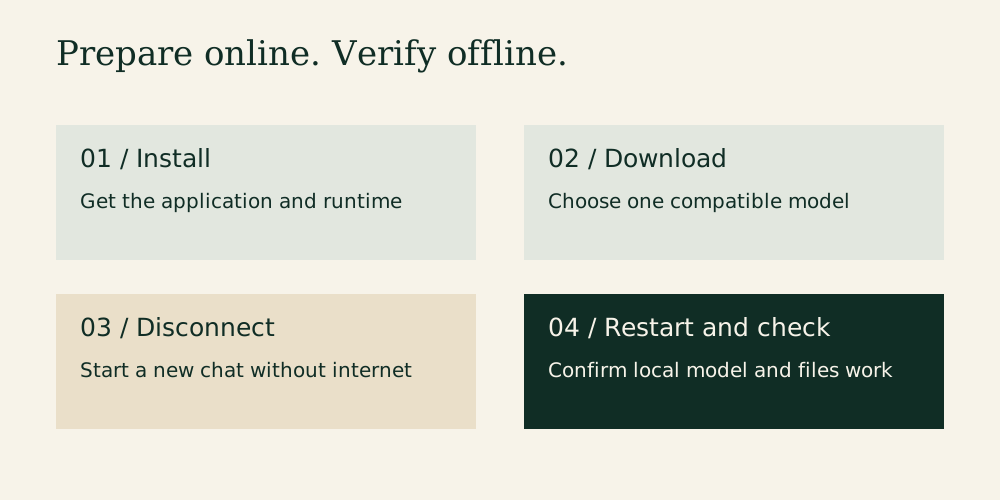
A flight, an unreliable hotel connection or a quiet afternoon away from the cloud can make a local AI assistant appealing. The setup is less mysterious than the language surrounding it: install an application, download a compatible model and test it before you disconnect.
LM Studio is an approachable route because it provides a desktop chat interface and model discovery in one place. This guide describes a preparation and verification workflow drawn from its documentation. It is not a claim that we installed and benchmarked every supported model or laptop.
What works without a connection?
Once the necessary files are on your machine, LM Studio documents offline support for local-model chat, document chat and a local inference server. Model discovery, downloads, runtime downloads and update checks require connectivity. Downloading the application alone is therefore insufficient preparation for an offline trip. LM Studio offline operation.
Swipe or scroll the table sideways to compare every column.
| Task | Prepare before disconnecting | Offline expectation |
|---|---|---|
| Draft from text you provide | Install the app, runtime and model | Local generation is available |
| Ask about a saved document | Keep the document and compatible model locally | Document processing can run locally |
| Search for a different model | Internet connection | Discovery needs connectivity |
| Ask for current news | Current external information source | A downloaded model cannot supply a live news search by itself |
| Use a connected external tool | Tool-specific setup and connectivity | Depends on that tool, not merely the local model |
1. Check the laptop before downloading
Use the current system-requirements page for your operating system. LM Studio's published Mac guidance specifies Apple silicon and macOS 14 or newer, with 16GB or more RAM recommended. Windows has its own processor and GPU requirements. Do not assume that every laptop described as suitable for AI supports the application you intend to use. LM Studio system requirements.
Keep a comfortable amount of free storage and plan to use power during the initial download. A library of model variants can become large quickly. Start with one manageable model rather than collecting files before you know what works.
2. Install from the official source
Download the app through LM Studio's official website. Follow its installation prompts and allow any necessary model runtime to finish downloading while connected. Keep the initial experiment simple: one desktop application and one local model, without plug-ins or external tools.
This also makes troubleshooting easier. If a basic local conversation works, you have a stable starting point. If you add several integrations at once, an error could come from the model, an integration, authentication or the network.
3. Choose one supported model
Open Discover and search for a supported model. Read the model card, including its license, intended use and limitations. Select a file compatible with your hardware and runtime. A model name may have several download options: those are not necessarily identical in memory use or output quality.
LM Studio explains that quantized variants reduce file size by using lower precision, with a possible loss of quality. Its guidance suggests choosing a four-bit option or higher if your machine can run it. A smaller suitable model is a better first experiment than an ambitious file that barely loads. LM Studio model-download guide.
Wait for the download to finish. Record the exact variant, because a later result is difficult to reproduce if “the model” could refer to several different files.
4. Ask a question with a checkable answer
Create a new chat and load the downloaded model. Start with a short task whose answer you can judge. For example: provide six fictional meeting notes and ask for three headings: Decisions, Actions and Unresolved Questions. Specify that missing deadlines should remain “not stated.”
This is more useful than asking a general knowledge question and deciding whether the prose sounds intelligent. Check whether it preserves names, dates and uncertainty. If the answer invents a deadline, revise the instruction and rerun the same task.
LM Studio allows separate conversation threads and folders, so keep this test separate from later experiments. Its documentation also explains that a model does not learn permanently from your chats. Managing chats.
5. Add a small document
Try a short document that you can verify directly. LM Studio supports attaching DOCX, PDF and TXT files. Short content may be added to context in full; longer material may use retrieval to select relevant passages. Retrieval can miss information, so an answer is not proof that the entire document was reviewed. LM Studio document-chat guide.
Ask for the section supporting each answer, then open that section yourself. For example: “Which cancellation deadline appears in this document? Identify the heading and quote only the short phrase containing the deadline. Say if you cannot find it.” Keep business decisions subject to normal review.
6. Perform a real offline check
Disconnect Wi-Fi and any other internet connection. Start a fresh local conversation using the downloaded model and repeat your short test. Then close and reopen the application while still disconnected. Confirm that the model remains accessible and that the document is stored locally rather than awaiting a cloud download.
If a step fails, reconnect and identify the missing file or online dependency. Check it before travel, while you still have time to fix it. Keep your offline workflow independent of web searches and connected tools.
Privacy and practical limits
Local processing reduces the need to send prompts to a hosted model, but computer security still matters. Protect saved conversations, source documents and backups. Cloud-synced folders and separately connected tools have their own behavior. “Local AI” does not automatically settle an employer's data-handling requirements.
Expect variation in answer quality, battery use and speed. A local model can still make mistakes and cannot know events absent from its training or supplied material. Use it for drafts and transformations you can check, and keep the original document as the authority.
The Editor's verdict
The best first offline workflow is deliberately modest: one supported model, a short repeatable task and a verified restart without internet. Learn what your current laptop can do before buying a replacement. Once that works reliably, add longer documents or more demanding models one change at a time.
Research checked October 21, 2026. Interface labels and hardware requirements may change with application updates.
Explore the options
You do not need to buy this laptop to follow the guide. Try your existing compatible computer first; this older high-memory model is an optional configuration example.

2023 MacBook Pro M2 Max — Amazon Renewed
A high-memory older laptop example, selected for the ownership checks discussed here.
As an Amazon Associate I earn from qualifying purchases. We may earn a commission from qualifying purchases through this button.
View exact product on Amazon ↗ (paid link)