
A written procedure often contains everything a colleague needs, yet still leaves them unsure where to begin. A short video can show the sequence, explain the difficult decision and give the learner a clear next step. The worthwhile goal is understanding, rather than simply getting a PDF to talk.
Synthesia is one practical option for creating presenter-style videos from existing material. This guide explains how we would structure the work, what its documented import tools do and where human review remains essential. It is an editorial workflow, not a claim that an automatically generated draft is ready to teach from.
Choose one outcome before uploading
Start with a sentence: after watching, the learner should be able to do what? “Submit an expense claim with the correct receipt” is a workable outcome. “Understand our finance department” is too broad for a first video.
Extract the part of the document that serves that outcome. Separate prerequisites, steps, exceptions and the person to contact when something goes wrong. Keep a link to the full current procedure for details that should remain available in writing.
For a longer manual, make a small set of focused lessons. A learner trying to solve one problem should not have to scrub through a complete policy recital. Treat the written source as the authority throughout production.
Select the right import route
Synthesia distinguishes generating a new script from a file, using an existing script as written and importing a PowerPoint presentation. Those routes serve different jobs. Its documentation explicitly says file import writes a new script from the source; it does not preserve the original wording or structure. See Synthesia’s video-creation guide.
Use document import when you want a draft adaptation that you will edit. Use the script route when you have already approved the narration. Use standalone PowerPoint import when the deck’s visual structure is important. Do not assume uploading a document containing a script will make the software read it verbatim.
This distinction matters for policies, product instructions and carefully qualified wording. If a sentence must remain exact, retain it in the approved script and check the generated speech against it.
Prepare a clean source and a small brief
Remove outdated instructions, comments and duplicate passages before supplying a file. Include the version date and identify any figures or screenshots the video must use. Confirm you have permission to upload the document and to reproduce its contents for the intended audience.
Give the tool a specific brief: who is watching, what they already know, the task they need to complete and the desired tone. Ask for an outline first. Review whether the proposed scenes follow the real process before spending time polishing visuals.
For example, an onboarding lesson might open with the completed result, show the three actions required, explain one common exception and close with the support route. This is a proposed teaching structure, not a promise that every document will produce a usable sequence automatically.
Build scenes around actions
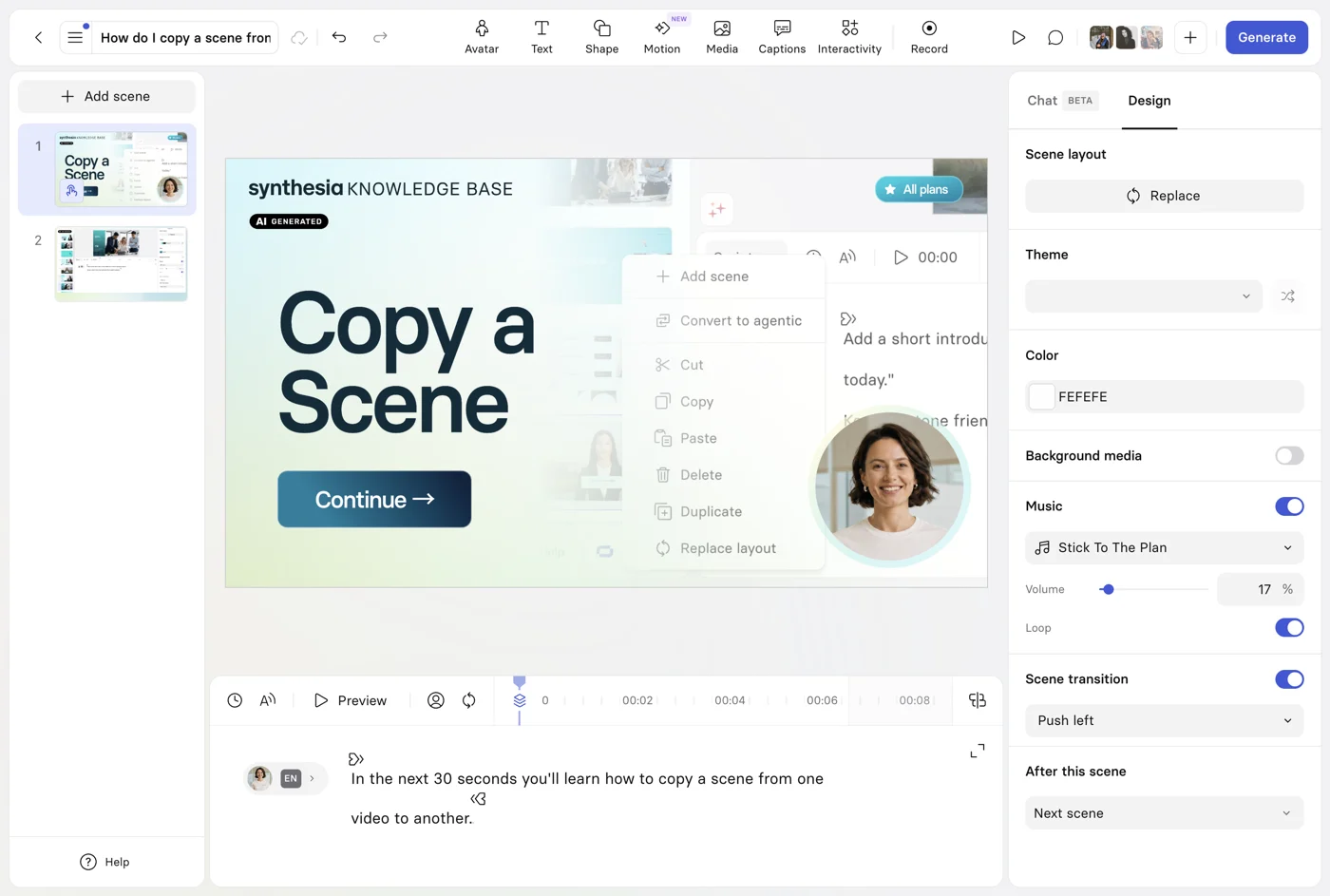
Give each scene one useful job. An opening identifies the task. A demonstration shows the relevant control. An explanation tells the learner why the choice matters. A final scene sets out what to do next.
Choose between a presenter, a screenshot, a diagram and a screen recording according to the information. A presenter can introduce a process; a real interface image is usually more helpful when the learner must locate a particular button. Avoid decorative imagery that resembles a software screen but depicts controls that do not exist.
Keep the visual evidence and narration synchronized. If the interface has changed, update the scene rather than asking the learner to reconcile an old screenshot with current instructions.
Keep the brand readable
Use a restrained palette, consistent headings and generous contrast. A logo belongs in a purposeful position, not over the part of a screenshot the learner needs to inspect. Leave the essential action large enough to read on a phone.
Synthesia’s editor supports several aspect ratios, including landscape and portrait. Decide the viewing context before arranging the scenes; a landscape desktop demonstration may need a separate composition for a vertical social clip. See the editor and video-size documentation.
Do not assume every subscription includes the same brand controls. Synthesia’s Assistant documentation identifies its brand-kit application as an Enterprise feature. A consistent template and carefully prepared assets still matter when evaluating the plan that fits your needs. See Assistant capabilities.
Treat PowerPoint conversion as an import to review
The standalone PowerPoint workflow accepts PPTX and can import editable elements, with documented limitations. Speaker notes can populate the script when the relevant import option is enabled; without notes, the software can generate narration from slide text. Original PowerPoint animations are not imported as animations. See Synthesia’s PowerPoint import instructions.
Check tables, labels, line breaks and any fonts after import. A slide that worked beside a live speaker may need substantially less on-screen text in a video. Keep detailed reference tables in a companion document when shrinking them would make the video unreadable.
Budget for review and revisions
Before subscribing, confirm document-import access, downloadable output, watermark removal, collaboration rights and current generation allowances. These are separate purchasing questions. A service that is free to explore may still require a paid plan for the delivery format you need.
Synthesia’s pricing page distinguishes its free and paid features, including downloadable content. The live plan details can change, so check the current terms instead of treating an older advertised minute allowance as a permanent entitlement. See current Synthesia plans.
Allow time for a subject-matter reviewer to check the instructions and for an editor to check names, pronunciation and pacing. A technically smooth voice can still say the wrong thing. Ask one representative learner to attempt the task using the draft and note where they hesitate.
Publish a package people can use
Watch the generated version all the way through. Check captions against the spoken words and make sure the written procedure remains easy to find. Include a clear title, owner, version date and route for reporting an error.
Synthesia documents MP4 video and separate caption downloads in SRT or VTT for supported output. Interactive projects have different delivery requirements; an ordinary video file cannot preserve clickable quizzes. See video downloads and publishing options.
Retain the approved script, source document, original media and final video together. When the underlying procedure changes, review the lesson as well. A beautiful training video earns its place by helping somebody complete the right task today.
Explore the options
Check current import, generation and export allowances for the plan you intend to use. Our Synthesia button is a paid referral link.

Synthesia
Create presenter-style explainers, training and business videos from a script, using AI avatars and voices.
Modernist Review may earn a commission if you use this link and purchase an eligible Synthesia subscription.
Visit Synthesia ↗ (paid link)